Framer
Framer CMS best practices for templates
Framer CMS best practices for templates: plan collections around plan limits, name and type fields, use references, handle empty fields and connect SEO.
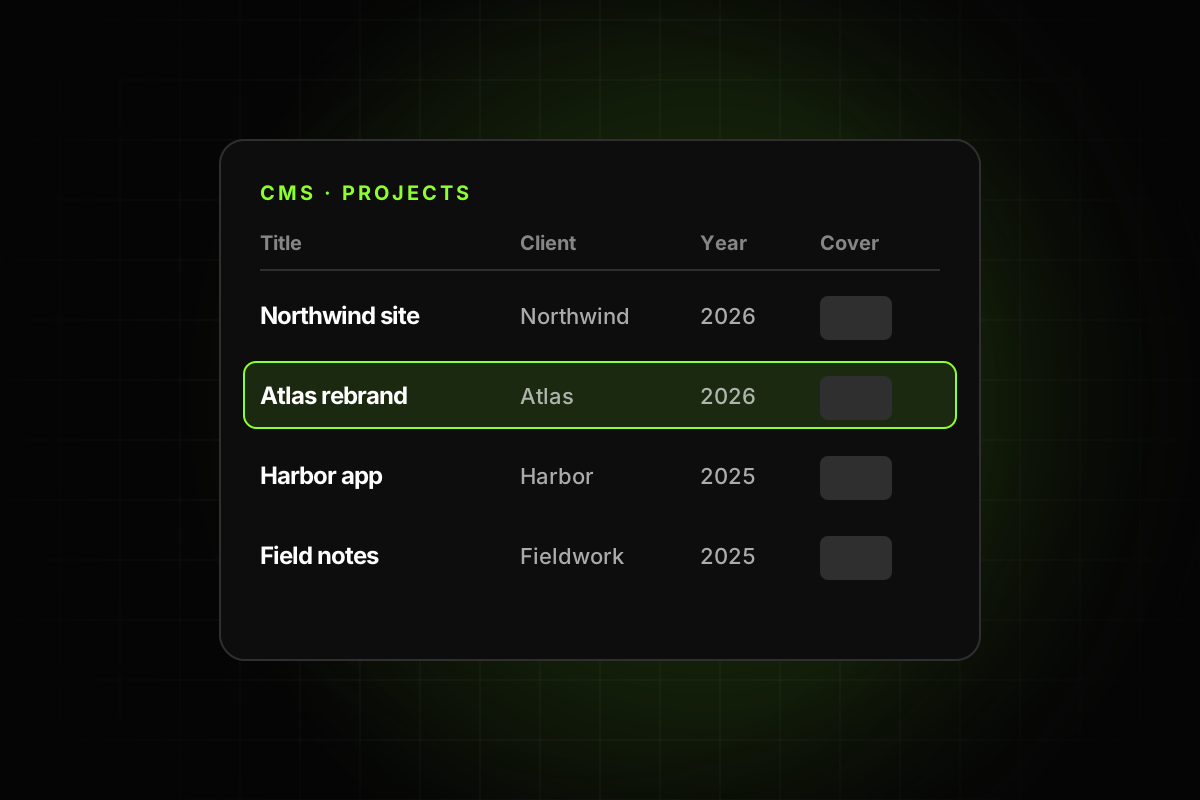
Framer CMS best practices for templates come down to one idea: the buyer should be able to add, edit and remove content without touching the design. That means repeated content lives in collections, fields are named clearly and typed correctly, detail pages handle empty fields, collections are connected with references instead of duplicated, and the whole setup fits the plan your buyer is on. Do that, and the CMS becomes the reason someone picks your template.
Below is how to plan collections, which field types to use, how to build detail pages that don’t break, and what to clean up before you publish.
Why the CMS matters more in a template
In your own site, a messy CMS slows you down. In a template, it slows down every buyer, and they don’t know where anything is. Framer’s Template best practices have a CMS section with four items:
“Repeatable content is managed through the CMS where appropriate.”
“CMS fields are connected clearly to pages and components.”
“Empty and unused CMS entries have been removed.”
“CMS collections and fields use clear naming.”
The rest of this post is how to meet each of them, plus the plan limits that catch buyers out.
Framer CMS best practices for planning collections
Decide what goes in the CMS before you design pages. Framer’s guide to setting up a site for scale suggests collections “for blog posts, product listings, news articles, FAQs, or any regularly updated content.” For templates, a good test is: will the buyer add more of these? If yes, it’s a collection.
Usually a collection: blog posts, projects or case studies, team members, testimonials, job openings, FAQs, events, products, services with their own pages.
Usually not: the hero, a one-off about section, the footer. Those are better as components with properties.
Keep the number of collections low. According to Framer’s pricing page, the Basic plan includes 2 CMS collections and Pro includes 10, with 2,500 CMS items on Pro. A template with four collections means a Basic buyer can’t publish it without upgrading. That’s fine if it’s needed, but it should be a choice, and it should be on your listing.
Some ways to save a collection:
Use an option field (a “Type” or “Category”) instead of separate collections for similar content.
Put short lists, like a few logos, in a component instead of a collection.
Combine “News” and “Blog” if they share the same fields.
Name collections and fields for the buyer
Field names show up in the CMS editor and in the properties panel when someone connects a layer. They’re the buyer’s map.
Name collections as plural nouns: “Projects”, “Team”, “Posts”.
Name fields by meaning: “Client”, “Year”, “Cover image”, “Summary”. Not “Text 2” or “Image copy”.
Use the same names across collections for the same thing, like “Cover image” everywhere.
Order fields the way someone would fill them in: title, slug, summary, cover, body, then SEO fields.
Pick the right field types
Framer’s CMS documentation lists the field types: boolean, color, number, string, formatted text, image, file, link, date, enum (an option field), a reference to another collection, a multi-reference and an image array. Choosing the right one makes the template easier to edit and harder to break.
Plain text for short values like titles, names and roles. Formatted text only for real body content.
Date fields for dates, so sorting works and buyers can’t type “Jan 3rd” in five formats.
Option fields for categories with a fixed list, so filters and badges stay consistent.
Link fields for URLs, not plain text.
Toggles for yes/no choices like “Featured”.
Color fields only when each item genuinely needs its own color, like a project accent.
Use references instead of duplicating content
If two collections share information, connect them with a reference rather than typing the same thing twice. Framer’s Academy has a lesson on collection references showing how to “reference items from one CMS collection to another.”
Common examples in templates:
Posts reference an Authors collection, so changing an author’s photo updates every post.
Projects reference a Services collection with a multi-reference, so one project can show several services.
Jobs reference a Departments collection for filtering.
Each reference collection counts toward the plan limit, so weigh it against the option-field approach above. For fixed lists that never change, an option field is simpler. For lists with their own data, like authors with photos and bios, use a reference.
Build detail pages that handle empty fields
The buyer won’t fill in every field for every item. A detail page should look finished either way. Framer’s help article on flexible CMS detail pages describes the tools:
The “Is Set” condition: “If an image is added, it is displayed. If not, it remains hidden.” Use it on every optional field: secondary images, quotes, video, links.
Toggle fields to show or hide sections on purpose.
Option fields to switch between layout variants, for example a case study with or without a gallery.
Then test it: create one item with every field filled in, and one with only the required fields. Both should look right. Check that no empty space is left where a hidden element used to be.
Connect SEO fields on detail pages
Every CMS detail page is a page Google can index, and buyers will expect their posts and projects to have proper titles and descriptions.
Add an SEO title and SEO description field, or reuse the title and summary.
Connect them in the detail page’s settings, along with the social image.
Make slugs readable, and make sure every item has a unique one.
Fill alt text for CMS images, either from a field or the item title.
Fill it with sample content that teaches
Sample content shows the buyer how the collection is meant to be used. Use enough items to show the layout working, usually three to six. Write realistic titles and summaries, at the lengths you expect real ones to be. Use one item to show every optional field filled in, and one to show the minimum.
And remove the rest. The best practices ask that “empty and unused CMS entries have been removed.” Test items, drafts called “Copy of Copy” and unused fields all make the CMS harder to read.
A CMS checklist before publishing
Every repeated content type is a collection, and nothing else is.
Collection count fits the plan you’ll list (Basic allows 2, Pro allows 10).
Collections and fields have clear, consistent names.
Field types match the content: dates, options, links, toggles.
Shared data uses references, not duplicates.
Detail pages handle empty optional fields with no gaps.
SEO title, description and social image are connected.
Slugs are unique and readable.
Sample items show both the full and minimal versions.
Unused items and fields are deleted.
This is one section of our full Framer template checklist. The Framer template checker plugin covers parts of it automatically, including duplicate slugs and CMS SEO fields. For the rest of the editing experience, see how to make a Framer template easy to edit. If you want help filling collections, Framer’s Agent can add content to the CMS for you, and a Framer Skill can teach it your collection structure, as explained in our guide to Framer Agent Skills.