AI
Framer Agent Skills: what they are and how to use them in templates
Framer Agent Skills are saved instructions the Agent reuses. How to create one, five worth setting up and how to ship a skill with your template.
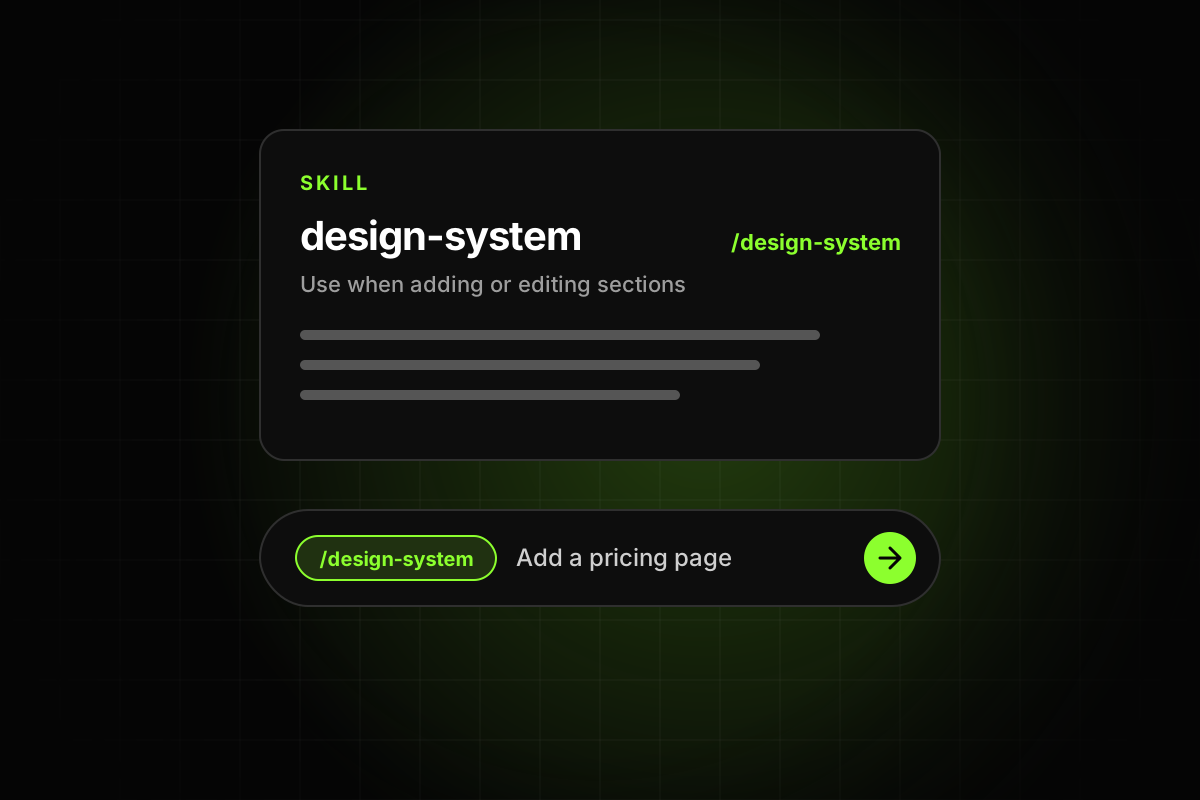
Framer Agent Skills are reusable sets of instructions that tell the Framer Agent how to handle a specific task in your project, like following your design system, writing in your brand voice or running a launch check. You create them in Project Settings, call them with a slash command, and the Agent can also pick one up on its own when your request matches its description. For template creators there’s an extra use: skills stay with a project when someone remixes it, so you can ship one that teaches the buyer’s Agent how your template is built.
Framer introduced Skills in September 2026. This guide explains how they work, how to write a good one, and how to use them in templates.
What Framer Agent Skills are
Framer’s Skills page describes a skill as “a reusable set of instructions that tells the AI agent how to handle a specific task in your project.” The Academy lesson adds that it’s “a reusable set of instructions and project context for the Agent.”
The difference from a normal prompt is that a skill is saved in the project and connected to it. In the announcement, Framer says it “connects this guidance directly to the canvas and to components and styles in your project.” You explain something once, and the Agent applies it every time, instead of you repeating the same instructions in every chat.
If you’re new to the Agent itself, start with our practical workflow for Framer Agents, and our Framer 3.0 overview for where Agents came from.
How Skills work
According to the Academy lesson, each skill has three parts:
A title, which “also becomes the slash command.” A skill called design-system is called with /design-system.
A description, which “tells the Agent when to use it.”
Instructions, holding “the rules and context for the task.”
There are two ways a skill runs. You call it with its slash command, or, as the announcement puts it, “the agent can use skills on demand when a skill’s description matches your task.” That second mode is why the description matters: it’s how the Agent decides.
How to add a skill
There are three routes, all from Framer’s own guides:
Write it yourself. “Open Project Settings, select Skills, and create a new Skill.”
Ask the Agent. “Use /skills to have the agent write a new skill or update an existing one for you.”
Copy one from the Skills Index. The Skills page has ready-made skills. Copy one, type /skills in the Agent chat, paste it, then call it by its command. You can edit skills any time under Settings, Skills.
The index includes skills named design-system, cms-content, remove-ai-writing, seo-check, brand-voice, accessibility-check, launch-check and effects. They’re a good starting point to adapt rather than write from scratch.
Five Framer Agent Skills worth setting up
The Academy lesson walks through skills for effects, design system rules, brand voice, accessibility and launch checks. Here’s what each might contain for a template project.
1. Design system
Tell the Agent to use existing components, text styles and color styles, and never to create new ones without asking. Name the key components (“Use the Section Header component for every section title”) and the spacing scale. This stops the most common Agent problem: new layers with hand-picked values that break the system.
2. Brand voice
Describe tone, sentence length and words to avoid. Include two short examples of copy you like. Useful when the Agent writes sample content or rewrites sections.
3. CMS content
List each collection, what its fields mean and the expected length of each. Framer’s help center has a guide to adding CMS content with the Agent. A skill makes it follow your structure every time. Pair it with our Framer CMS best practices.
4. Accessibility check
Ask for one H1 per page, headings in order, alt text on images, labeled form fields and readable contrast. Have it report problems before fixing them.
5. Launch check
Your pre-publish list in skill form: no placeholder text, every link works, 404 page and favicon set, page titles and descriptions filled in. You can base it on our Framer template checklist.
How to write a skill that works
The Academy lesson gives two pieces of advice: “keep each Skill focused on one repeatable job,” narrow enough to “test and refine,” and “revise the instructions when a result misses a rule.” In practice:
One job per skill. A “do everything” skill is hard for the Agent to match and hard for you to debug.
Write the description as a trigger. “Use when adding or editing sections on any page” is clearer than “Design rules.”
Name real things. Refer to your actual components and styles by name.
Say what not to do. “Don’t create new color values” is as useful as any positive rule.
Test it on a branch, check the result, and tighten the wording where it missed.
Skills in templates
This is the part that matters most if you sell templates. From Framer’s announcement: “Because skills stay with a project when someone remixes it, template creators can include a skill that teaches the agent how the template was designed, which decisions shaped it, and how new content should follow the original direction.”
A buyer who asks the Agent to “add a pricing page” today gets something generic unless the Agent knows your system. With a template skill, it can reuse your components, styles and section patterns. That makes the template easier to extend, which is a real selling point. What to include:
The structure: which components exist and what each is for.
The styles: which text and color styles to use for what.
Layout rules: section spacing, grid columns, how sections stack on phones.
CMS rules: what each collection holds and how detail pages should look.
Tone: how sample copy is written, so new copy matches.
Mention the skill on your listing and in the template’s notes, with its slash command. Buyers won’t look in Project Settings unless you tell them. It also complements the basics in how to make a Framer template easy to edit: a skill works best when the styles and components it points to are already in place.
An example template skill
Here is what the instructions of a skill shipped with a portfolio template might look like. The title would be something like template-guide, and the description “Use when adding pages, sections or CMS items to this template.”
Build every new section from the existing Section components: Section Header, Feature Grid, Project Card, Quote and CTA.
Use only the existing text styles. Headings use Heading 1 to Heading 3, body copy uses Body or Body Large.
Use only the existing color styles. Never add new color values.
Keep 120px of vertical space between sections on desktop and 64px on phones.
New projects go in the Projects collection. Fill Title, Client, Year, Summary and Cover image. Leave Gallery empty if there are no extra images; the detail page hides it.
Write in short, plain sentences. No exclamation marks.
Before finishing, check that the page has one H1 and that every image has alt text.
Every rule names something that exists in the project. That’s what lets the Agent follow it instead of guessing.
Skills don’t replace checking the result
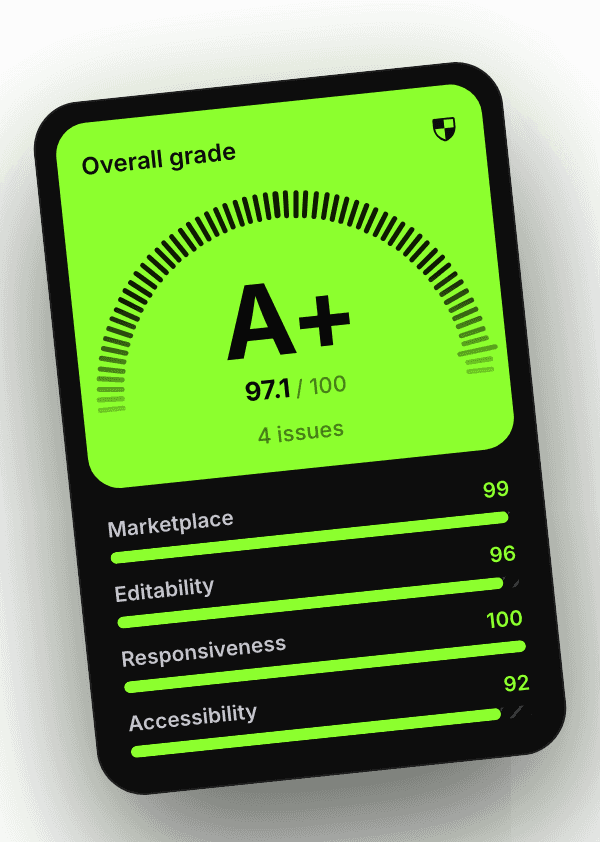
A skill makes the Agent more consistent. It doesn’t make it correct every time. Agent edits can still leave unstyled text, hand-picked colors, copies instead of components or layouts that overflow on phones. Review changes on a branch before applying them, and run a final check before publishing. The Framer template checker plugin is built for that last step: it grades the project on marketplace readiness and editability and points to the exact layers that need fixing, whether a person or the Agent created them.